
How to Create a CV Using Microsoft Word
Creating a clean and professional CV does not require expensive tools or graphic design skills. With just Microsoft Word, you can build a polished CV that stands out to employers. In this guide, you will learn how to create a CV using Microsoft Word, how to design it professionally, and how to structure your resume for maximum impact. You can check out our social media handle to check us out
Whether you’re a student, fresh graduate, job seeker, or working professional updating your resume, this professional CV tutorial will help you craft a modern, job-winning CV using MS Word. Here’s our website for more clarification
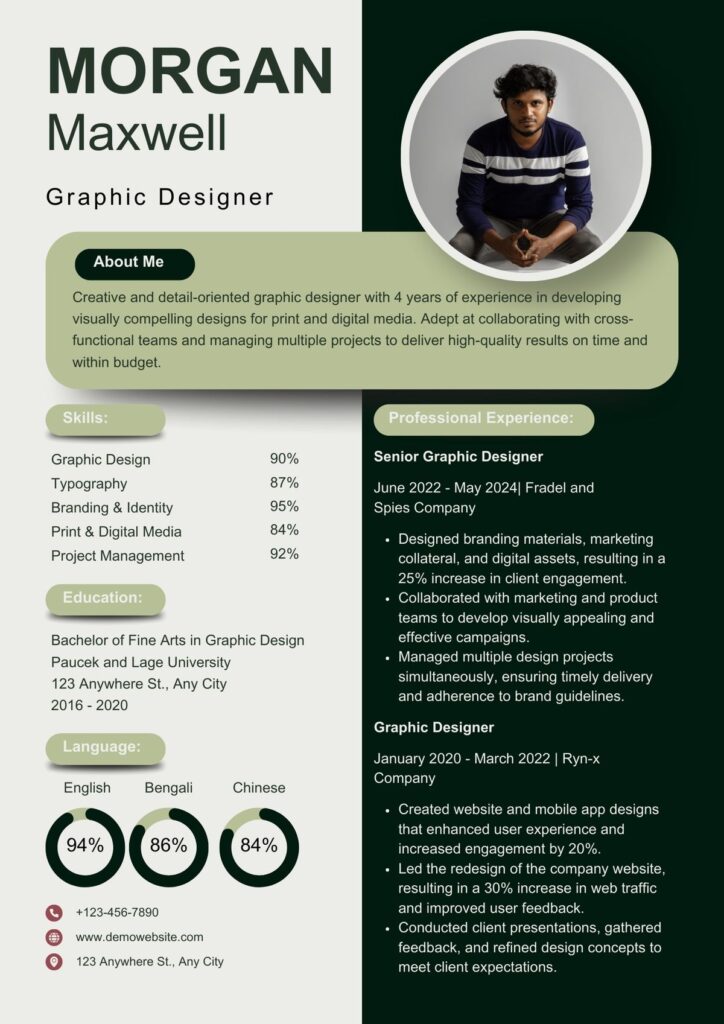
Why Use Microsoft Word to Create CV?
Microsoft Word remains one of the easiest and most accessible tools for creating CVs in Nigeria and around the world. It offers:
- Pre-built CV templates
- Easy formatting tools
- Professional layouts
- Compatibility with PDF exports
- Ability to design both simple and modern resumes
That’s why many job seekers still prefer creating a CV with MS Word.
Step-by-Step Guide on How to Create CV Using Microsoft Word
Below is a detailed, beginner-friendly guide on how to create CV with MS Word effectively.
Step 1: Open Microsoft Word
Launch MS Word on your PC.
Choose Blank Document if you want to design your CV from scratch or choose Templates to explore built-in CV designs.
Searching the template box for “Resume” or “CV” will bring up several professional layouts.
Step 2: Select a Clean and Professional CV Layout
If you’re learning how to create CV on Microsoft Word, layout is very important.
Choose a template that is:
- Simple and clean
- Easy to read
- ATS-friendly (Applicant Tracking System)
- Not too heavy with graphics
Good layouts include:
- Basic Resume
- Modern Resume
- Polished CV
- Professional Resume
Step 3: Add Your Contact Information
At the top of the document, enter:
- Your full name
- Phone number
- Professional email
- Location (City, Country)
- LinkedIn profile (optional)
- Online portfolio or website (optional)
This is the first part employers will see when reviewing your CV.
Step 4: Write a Professional Summary
This is a short 2–3 sentence paragraph that highlights who you are, what you do, and what makes you a strong candidate.
Example:
Highly motivated digital marketer with 3+ years of experience in content development, social media management, and SEO. Skilled at driving engagement, increasing brand awareness, and delivering measurable results.
A summary makes your CV look polished and well-structured.
How to Design a CV in Microsoft Word (Formatting Tips)
This section focuses on how to design a CV in Microsoft Word so it looks professional and attractive.
1. Use Proper Font Types
Use:
- Arial
- Calibri
- Times New Roman
- Helvetica
- Cambria
2. Use Font Sizes Wisely
- Name: 16–20 pt
- Headings: 12–14 pt
- Body Text: 10–11 pt
3. Use Bold and Color Sparingly
Choose one professional color (blue, dark gray, or black).
4. Keep Margins Clean
Use 1.0” margins for breathing space.
5. Use Bullet Points
For clarity and easy reading, list achievements and duties in bullets.
Step 5: Add Your Work Experience
Under this section, include:
- Job Title
- Company Name
- Location
- Dates of Employment
- Responsibilities and achievements (in bullet points)
Tip:
Start each bullet point with action verbs like Developed, Managed, Designed, Increased, Implemented, etc.
This helps your CV look more professional and results-oriented.
Step 6: Add Your Education Background
List your:
- Degree
- School Name
- Graduation Year
- Certifications (if any)
You can also add relevant trainings or online courses.
Step 7: Add Skills Section
Include both technical skills and soft skills:
Technical Skills:
- Microsoft Office
- Graphic Design
- Data Analysis
- Coding
- SEO, etc.
Soft Skills:
- Communication
- Time management
- Teamwork
- Leadership
This section helps employers quickly identify your strengths.
Step 8: Add Extra Sections (If Needed)
You may include:
- Projects
- Volunteer Experience
- Languages
- Awards
- Professional Memberships
These make your CV stand out and look complete.
Step 9: Format and Review Your CV
Before saving, make sure:
- Headings are consistent
- Bullet points align properly
- Spacing is clean
- Fonts are uniform
- No spelling errors
This is an essential part of this professional CV tutorial.
Step 10: Save and Export Your CV
After final editing:
- Save file as .docx
- Export as PDF for applications
PDF format prevents your layout from shifting when employers open your CV.


